Making a 3D Menu With Three.js
Context
Today, I wanted to try out Three.js. I've always found it cool to have websites and menus in 3D, although it's clearly not often the most user-friendly type of menu interface. I've made several things with JavaScript before, but I had never tried Three.js. But as the popular saying goes: better late than never.
Since my homepage looked really, really bad (it was initially done very quickly for the AnamnIA Project), where I just needed a login button to connect to my Keycloak identity provider, I decided to build a new 3D homepage using Three.js.
First, of course, I needed to decide how the menu should look. At first I thought: let's make a workstation with soldering tools, a PnP machine, a PC, and other equipment. When I’d click on each object, it would take me to the corresponding blog section (3D printing, electronics, etc.). But it didn’t take long for me to realize that... ain't nobody got time to model all these objects — especially since I couldn’t find ready-made models that matched the style I wanted.

Idea and Design
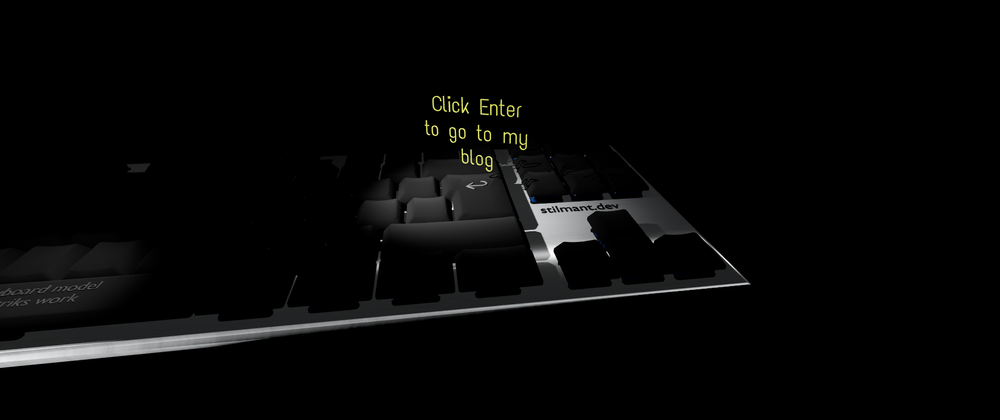
So, after some searching and brainstorming, I decided to go with a simple keyboard in the dark. The user would see a 3D model of a keyboard and click on a key, which would trigger an animation and then redirect them to the appropriate URL. This approach had several advantages:
- I could use understandable shortcuts in the menu: the user would be able to click on the 3D keyboard with the mouse, or just tap the actual key on their real keyboard.
- Having the keyboard in a dark environment meant I didn’t need to use HDR images (which are heavy and slow down loading times). Plus, HDRs can sometimes make models look like they're floating in mid-air, which wasn’t the vibe I was going for.
- The animations for a keyboard are trivial to make in Blender. When pressing a key, I just animate the Z-axis of the key to simulate a press, and maybe add some lighting underneath. Later, I decided to add a “fly away” animation for a fancier effect.
I decided to start with just 3 keys (I can easily add more later):
- One key to go to the main page of my blog
- One key for logging in via Keycloak
- One key to link to the original Blender keyboard model (it’s royalty-free — but credit where credit is due!)
Finding a Model
Since I didn’t want to model a keyboard in Blender (refer to the meme/image above), I grabbed one from BlenderKit. I went with Patrik’s G915 Keyboard, which looks great.
Animation
The next step was to extract the individual keys I needed from the mesh. Since all the keys were grouped in one mesh, I isolated the keys I wanted (Enter, F1, and Space) and created a simple “key pressed” animation for each of them. As mentioned earlier, this was just a basic action that changes the Z-coordinate of each key object. Then I exported all five 3D models:
- the keyboard body,
- the 3 animated keys,
- and a rotating text element to prompt users to interact.
Optimization
After exporting the keyboard as a GLB file and importing it into Three.js Editor, I realized that some materials and textures wouldn’t load properly, which made some keys render incorrectly and simplified the overall appearance.
Also, since the model had a lot of vertices, I decided to simplify it — removing invisible parts and optimizing some meshes — to reduce polygon count and improve page load speed.
Coding
Before writing any code, I used the Three.js online editor to roughly position the keyboard, camera, and lights. Once I had a basic layout and had skimmed the Three.js documentation, I started implementing the actual functionality.
The code can be found on my GitHub along with some explanations on how to run it.
Final Result
And here is the final result — looks good enough for now.
It can also be seen directly here: https://stilmant.dev/
Conclusion / Next Steps
That was a fun one-day project! Three.js is really straightforward and well-documented. There are some really handy high-level functions like lookAt() and controls.target.set() that save you a lot of orientation math.
I didn’t do anything too crazy here, but I’ll probably try something more complex in the future with physics-based interactions. For a first try, this library was super cool. 10/10 would recommend for rapidly building 3D stuff in a web browser.
In the future, I might spice up the menu a bit — maybe add some objects, cooler transitions, or just integrate ideas people suggest. I’ll definitely try to get closer to the rendering quality of the examples shown on the official site.